AI humans6 min read
Turn any photo into a talking AI human: how to choose the perfect source image
 Thrifty AI Team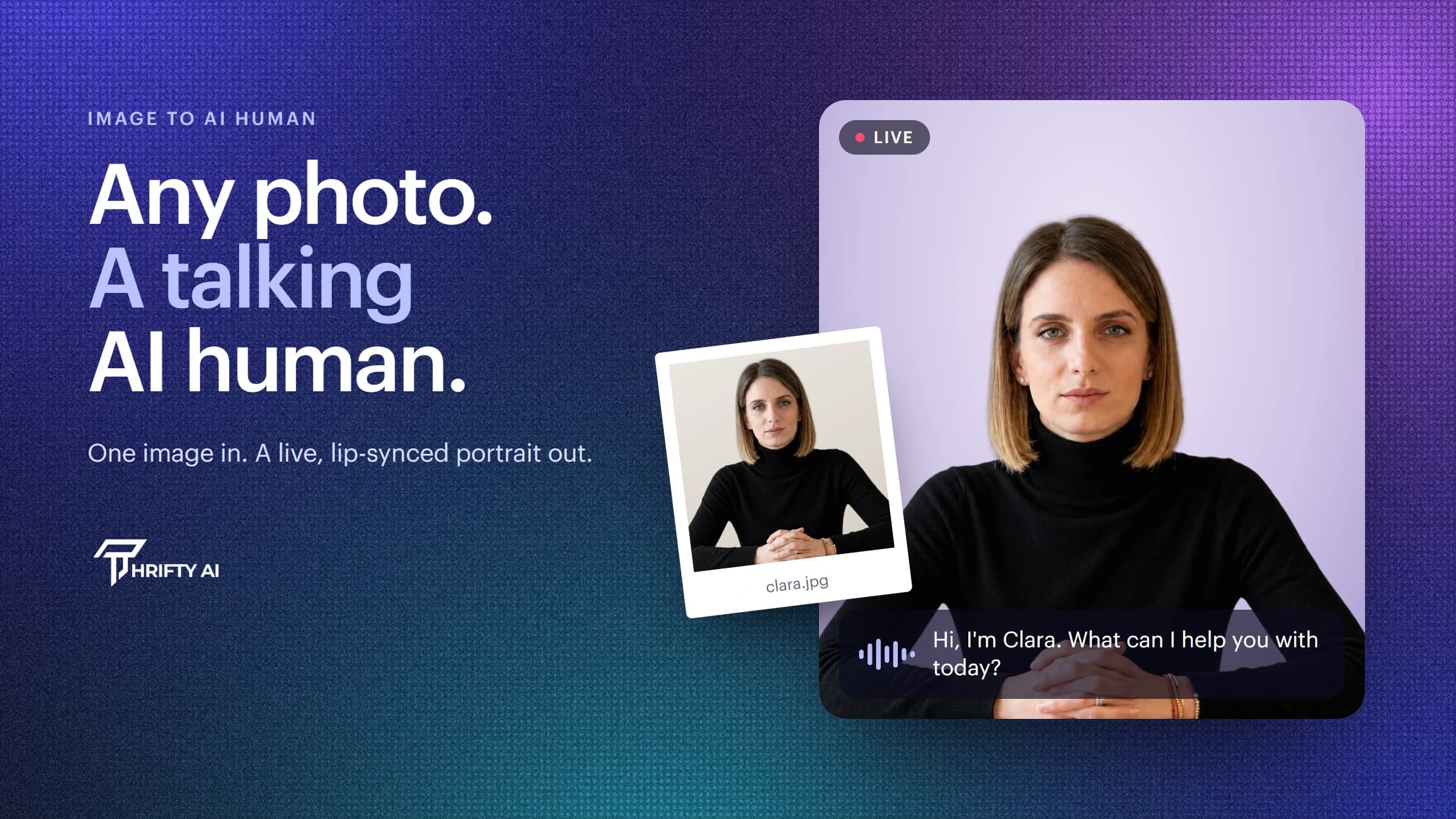
You no longer need a studio shoot or hours of training footage to create an AI human. In Thrifty Studios, one photo is enough: upload it, pick a voice, and you have a live presenter, tutor or concierge that can hold a real conversation. The model does the heavy lifting, but the photo sets the ceiling. This guide covers how to give it the best possible start.
What is image-to-avatar?
Image-to-avatar (also called photo-to-avatar or a talking portrait) is a model that animates a still image. Thrifty's Maya face models read the face in your photo, its shape, features, skin, hair and lighting, and then generate new video frames in real time, driven by the audio of the AI human's voice. The lips follow the words, the eyes blink, the head moves naturally, and the person in the photo keeps looking like themselves for the whole conversation.
Because everything the model knows about the face comes from one image, it has to infer what it can't see. A clear, well-lit, front-facing photo leaves very little to guess. A dark, tilted or partly hidden face forces the model to invent detail, and that is where artefacts creep in.
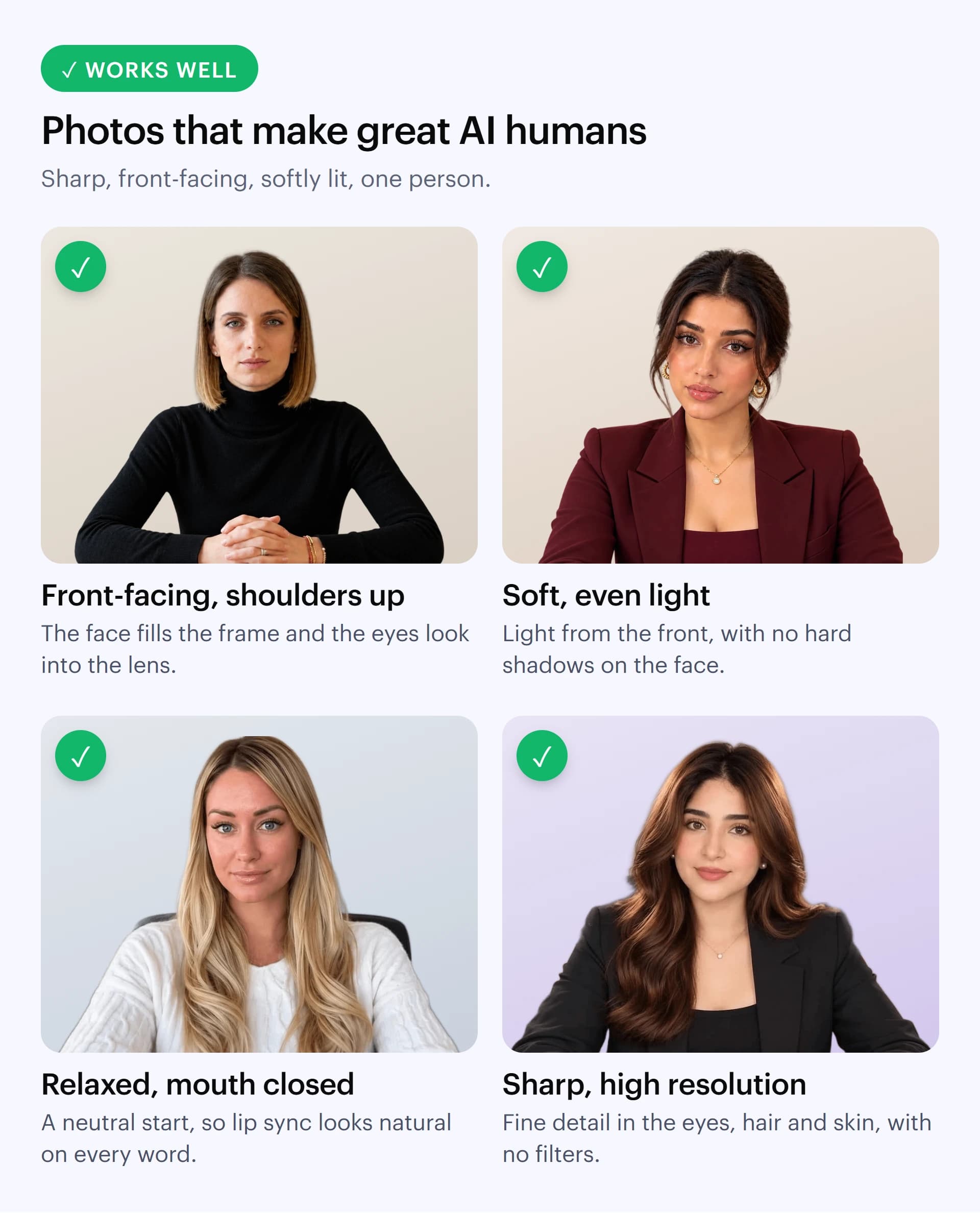
What kind of photos work best?
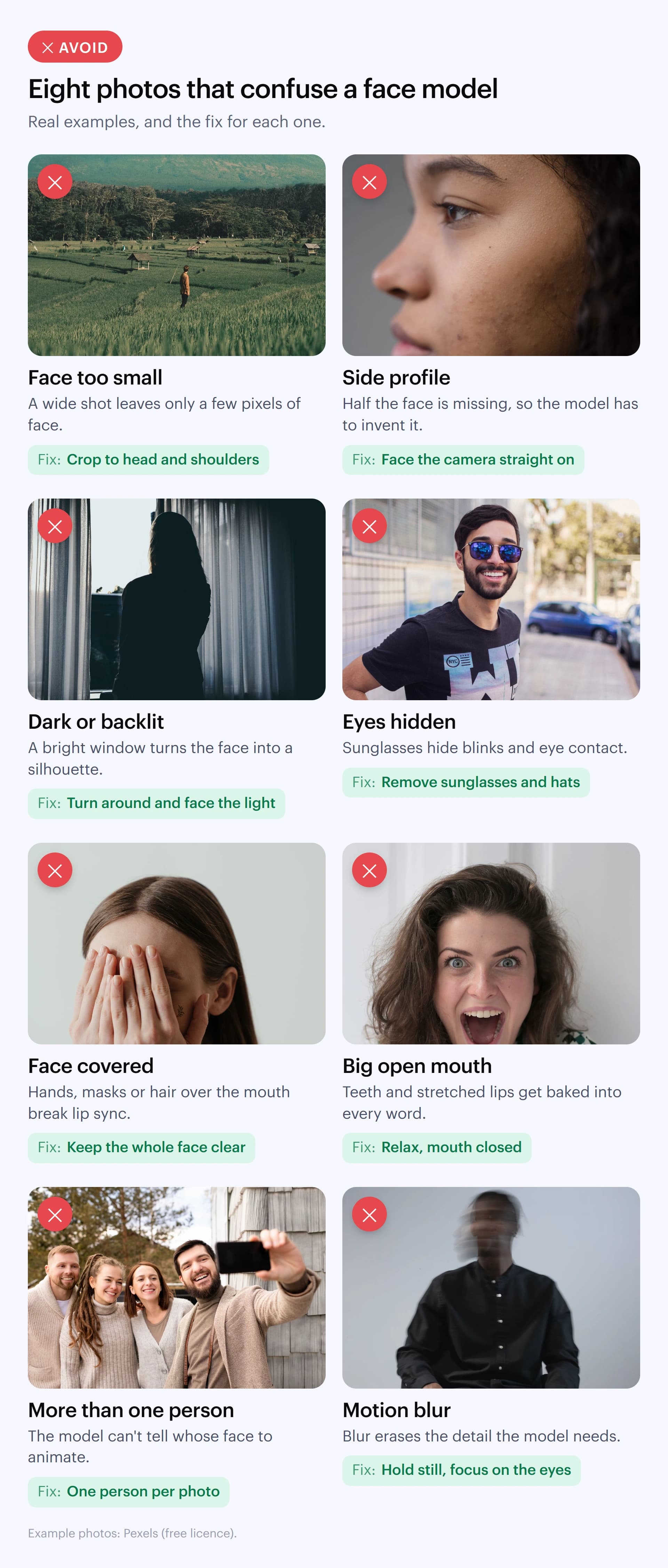
| Use | Avoid |
|---|---|
| Head and shoulders, filling most of the frame | Full-body or wide shots where the face is small |
| Facing the camera, eyes to the lens | Profiles, three-quarter turns, looking down or away |
| Soft, even light from the front | Hard shadows, backlighting, mixed coloured light |
| Relaxed face, mouth closed or slightly parted | Big open-mouth grins, talking or mid-laugh shots |
| Whole face visible | Sunglasses, masks, hands, hair or microphones over the face |
| One person | Group photos or other faces in the background |
| Sharp, high resolution, unfiltered | Blurry, heavily compressed, beautified or stylised filters |
| Plain, uncluttered background | Busy patterns or objects growing out of the head |
Why a neutral mouth matters
The AI human's mouth is going to move with every word, so the model needs to know what it looks like at rest. A wide grin bakes teeth and stretched lips into the starting point, which can make speech look exaggerated. Start neutral and let the voice and the conversation add the expression.
Illustrated and stylised characters
Illustrations, mascots and stylised characters can work well, as long as the face has human-like proportions: two clearly visible eyes, a visible mouth and a readable face shape. Very small eyes, beaks, snouts, masks or extreme cartoon proportions give the model less to animate, and lip sync suffers.
How do you take a good source photo?
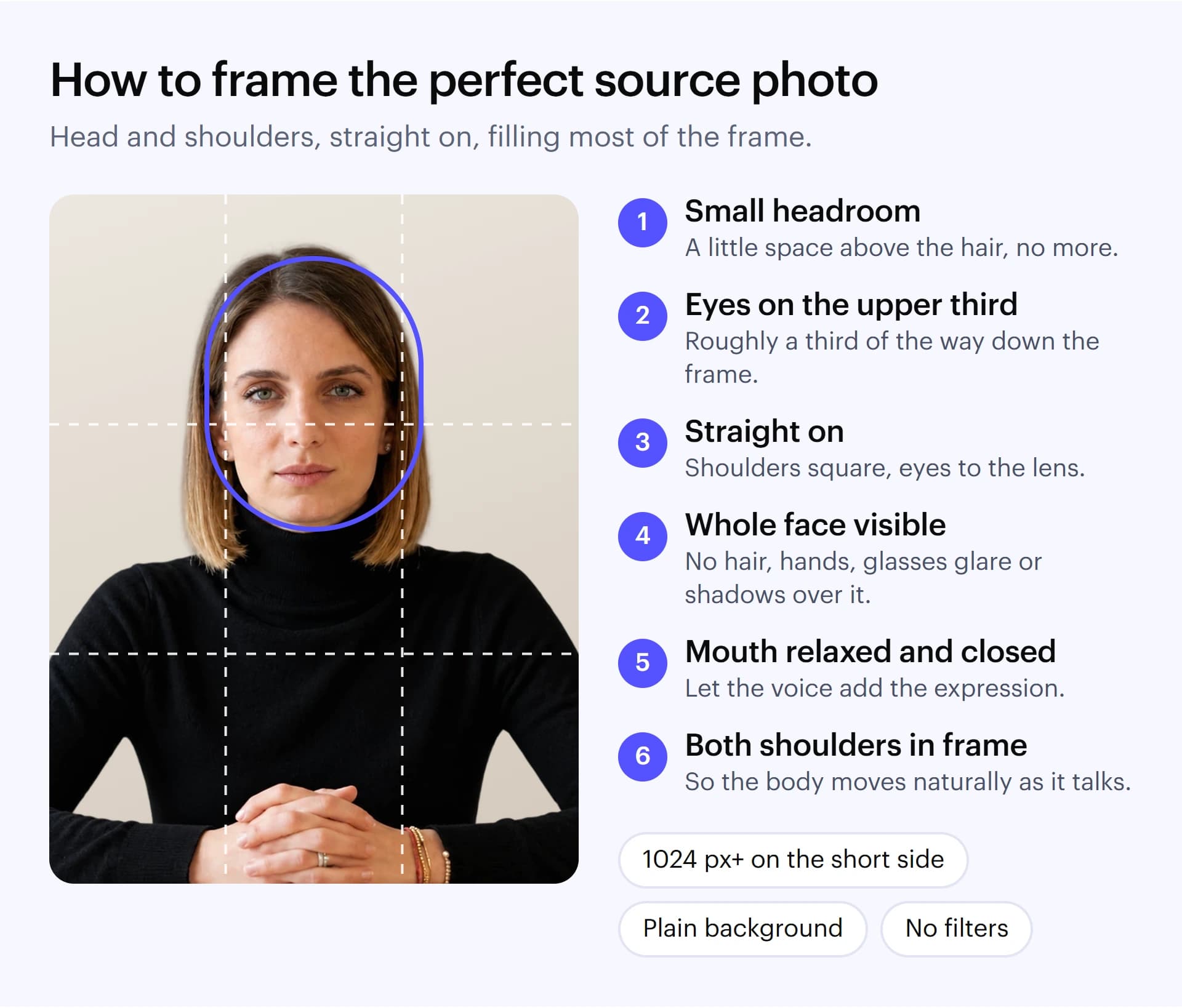
- Light from the front. Face a window on an overcast day, or put a soft lamp behind the camera. Avoid overhead lights that throw shadows under the eyes.
- Camera at eye level. Shoot from a little further back and crop in, rather than holding a phone close, which distorts the nose and forehead.
- Look into the lens. Shoulders square to the camera, chin level, eyes at the lens rather than the screen.
- Keep it simple. A plain wall or a softly blurred background; remove objects behind the head.
- Dress for the role. Solid colours work better than fine stripes or busy patterns, which can shimmer on video.
- Export at full quality. Aim for at least 1024 pixels on the short side, use the original file, and skip beauty filters and heavy edits.
Best practices once your AI human is live
- Match the voice to the face. Age, accent and energy should feel like the person in the photo; a mismatch is noticed straight away.
- Preview before you publish. Test a long answer, a short one and a question with numbers, and watch the mouth and eyes closely.
- Try two or three photos. Small differences in light or angle can make a visible difference; keep the one that looks most natural in motion.
- Keep the setting consistent. If the AI human appears on your site, a kiosk and in Google Meet, use the same source photo everywhere so people recognise it.
- Want more natural movement? If one photo isn't enough for a specific presenter, about a minute of video gives the model more to learn from.
Consent and responsible use
Only create an AI human from a real person's photo with their documented consent, and never from a photo of someone you don't have permission to represent. Thrifty applies the same rule to every customer, and every Thrifty AI human discloses that it is an AI. If you'd rather not use a real person at all, start from one of our 100+ stock faces.
Frequently asked questions
What is a talking portrait or photo avatar?
It is an AI human created from a single still image. A face model animates the photo in real time, so the person in it talks, blinks and moves in sync with a voice.
What makes a good photo for an AI avatar?
A sharp, front-facing head-and-shoulders photo of one person, in soft even light, with a relaxed closed mouth, the whole face visible and a plain background.
Can I use a selfie?
Yes, if it is front-facing, well lit and sharp. Hold the phone at eye level and slightly further away than usual, then crop in, to avoid the wide-angle distortion of close selfies.
Do cartoon or illustrated characters work?
Often, yes, as long as the face has human-like proportions with clear eyes and a visible mouth. Very stylised faces, beaks, snouts or masks reduce lip-sync quality.
Can I create an AI human from someone else's photo?
Only with that person's documented consent. Thrifty AI requires consent for any real person's likeness, and every AI human discloses that it is an AI.
Next, read how Thrifty AI humans remember the people they talk to, or book a demo to see your photo come to life.